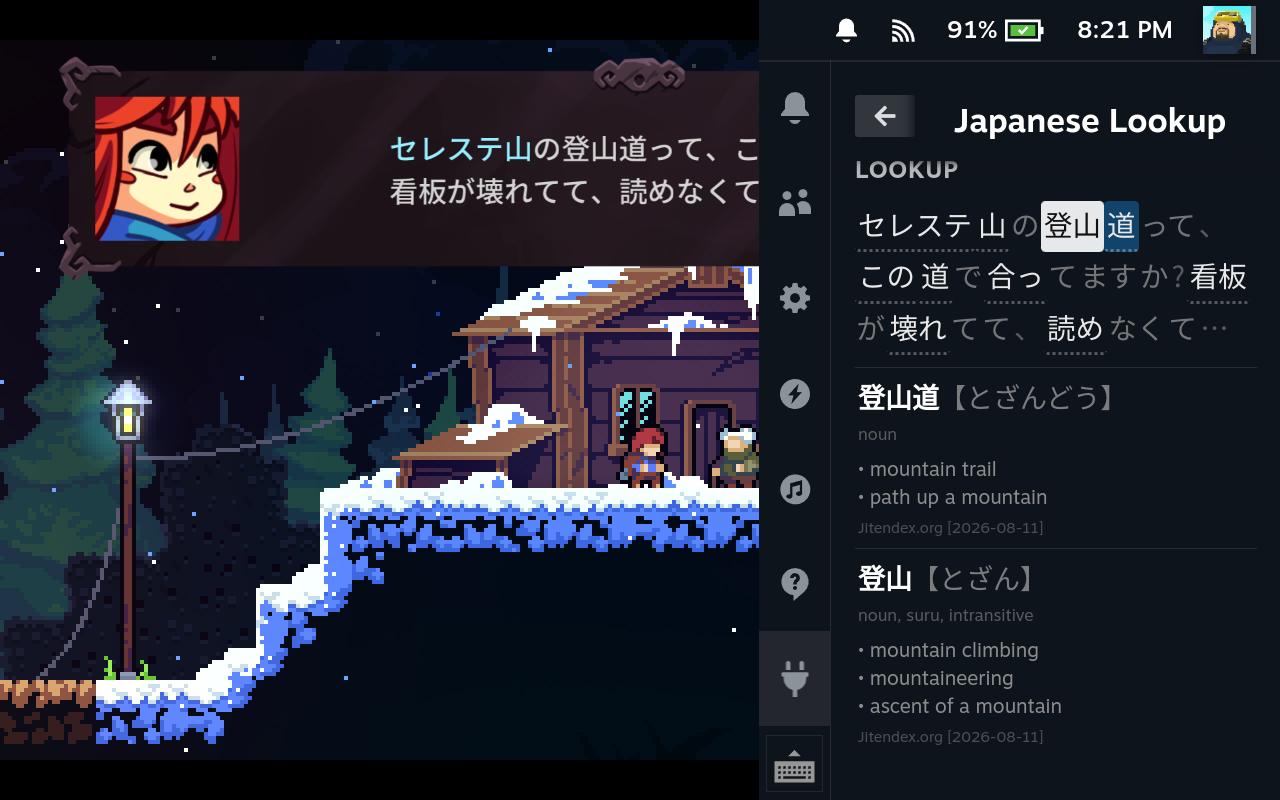
Celeste — Maddy Makes Games, 2018
Japanese study on the Steam Deck
A plugin for Decky Loader that lets you scan and look up Japanese text from your games — all without leaving Gaming Mode.
How it works
-


1. Scan the screen
Press one of the back buttons to scan text.
-
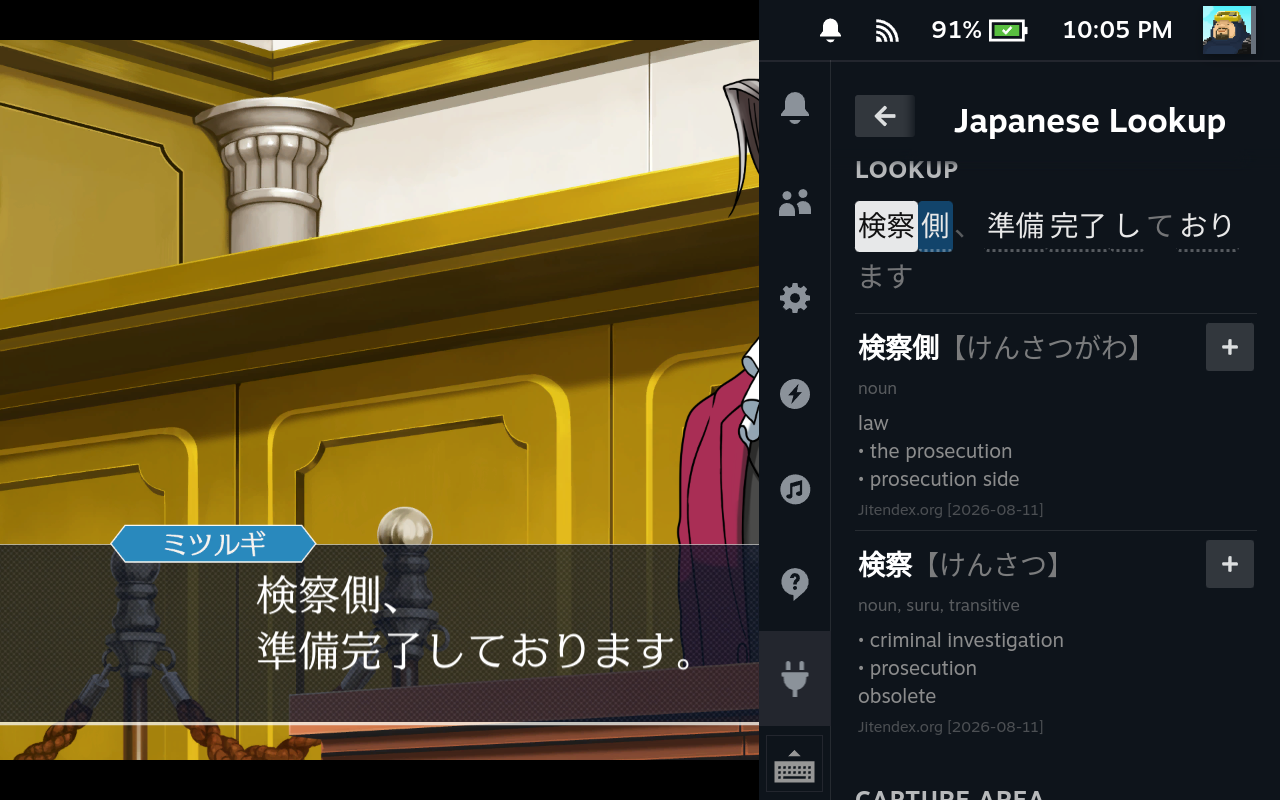

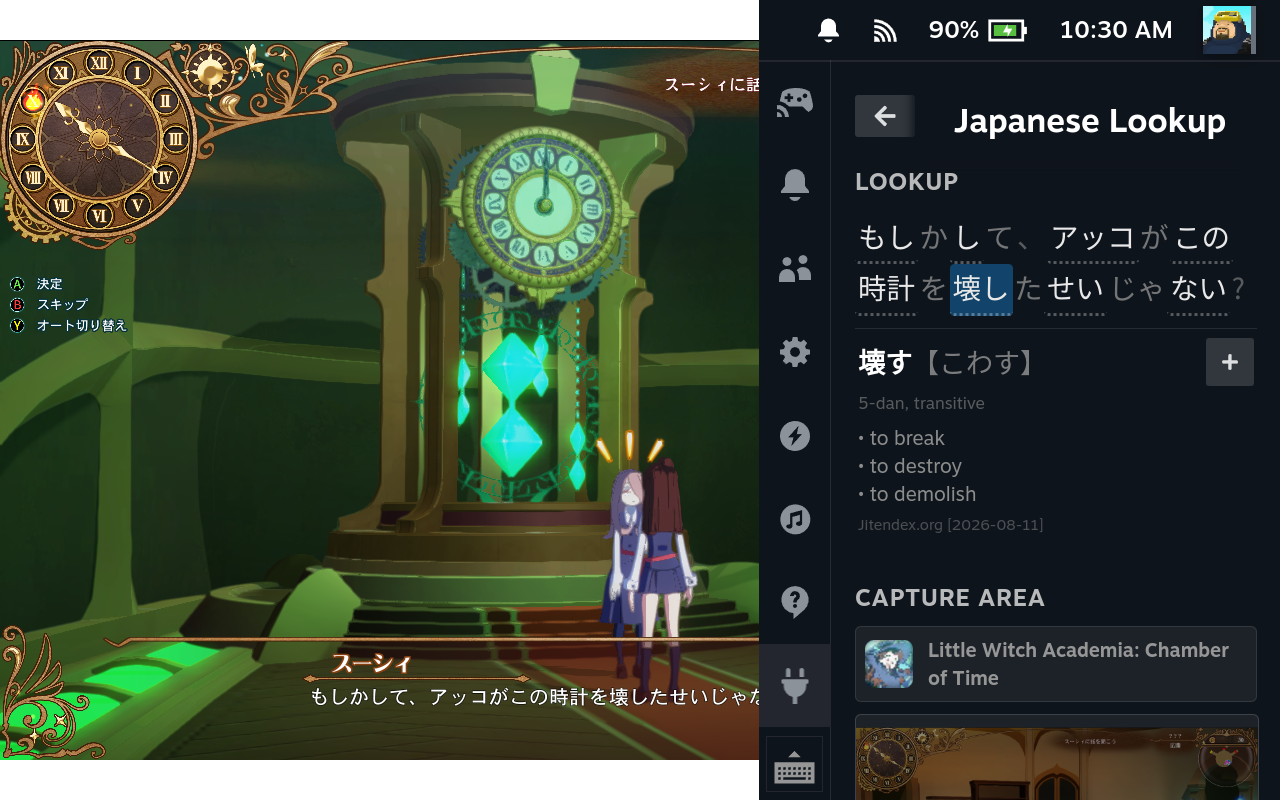
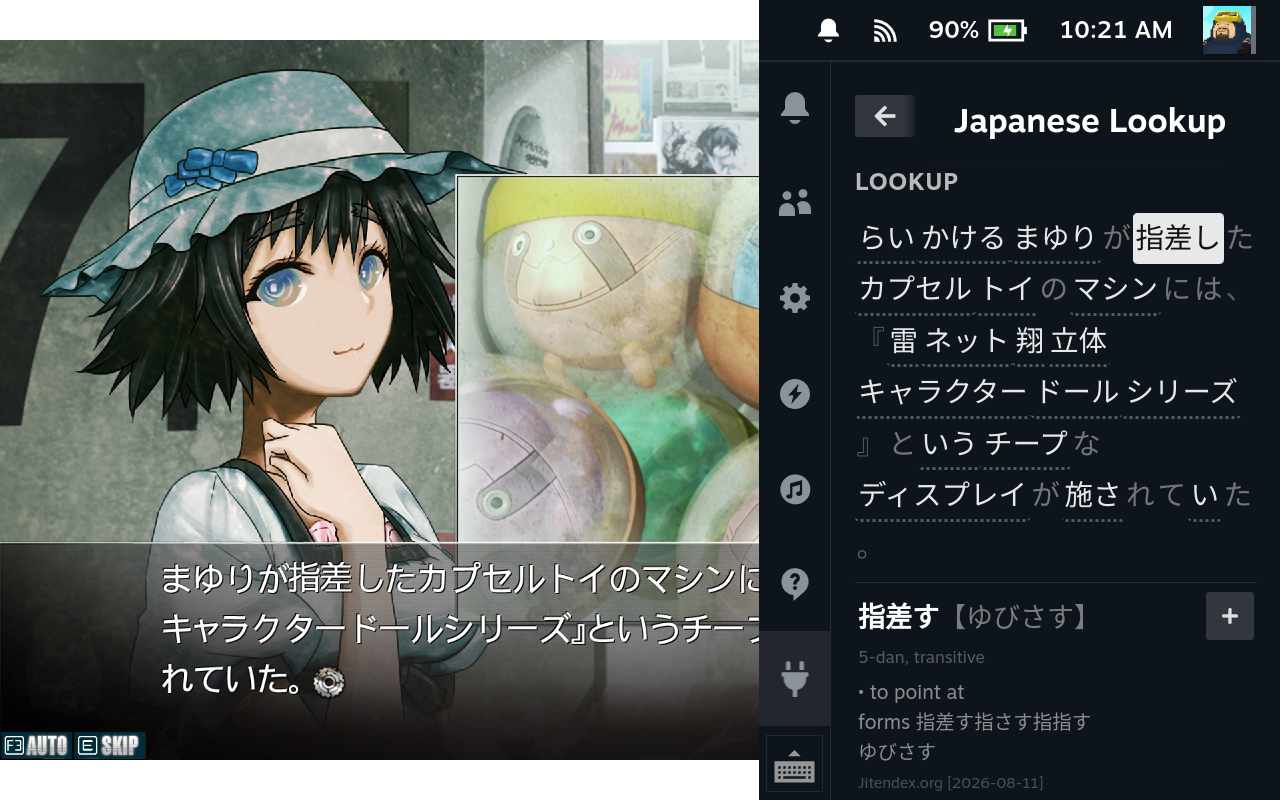
2. Review words
Scanned text opens up in the side panel.
-
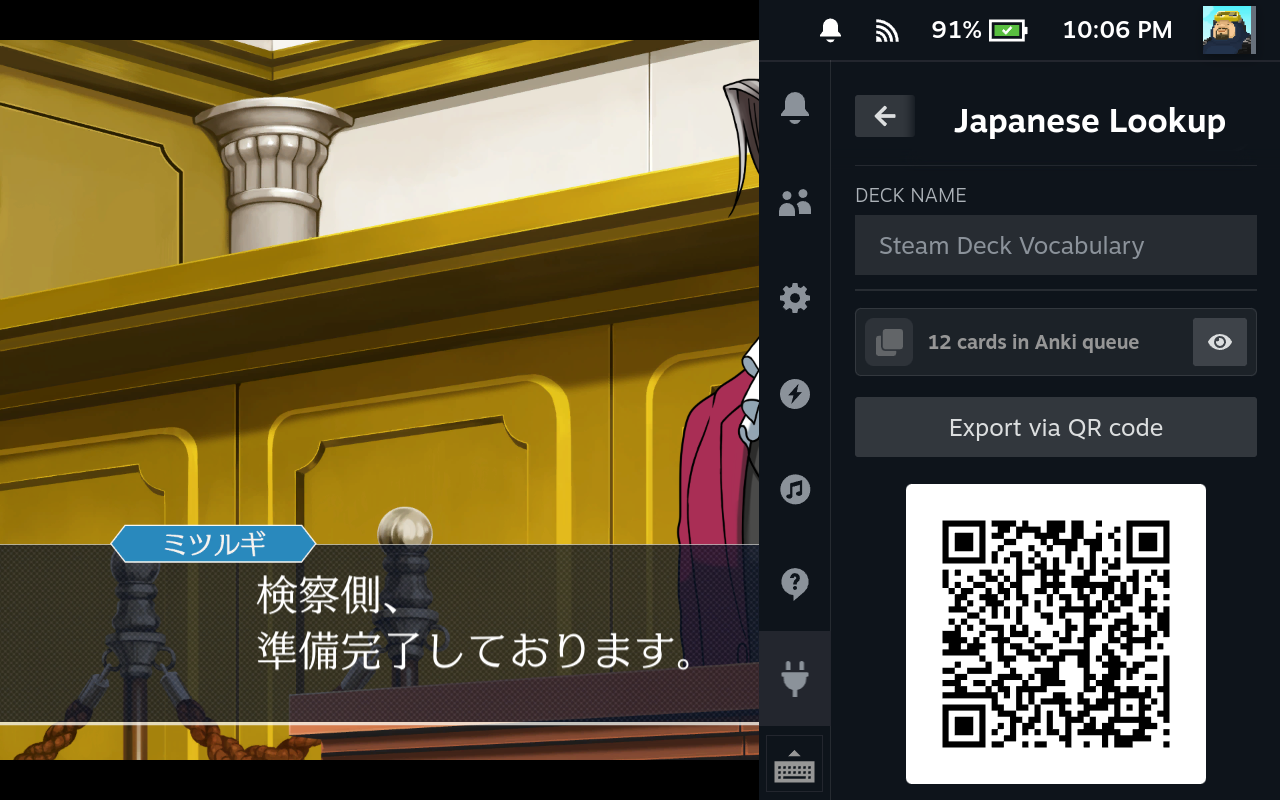

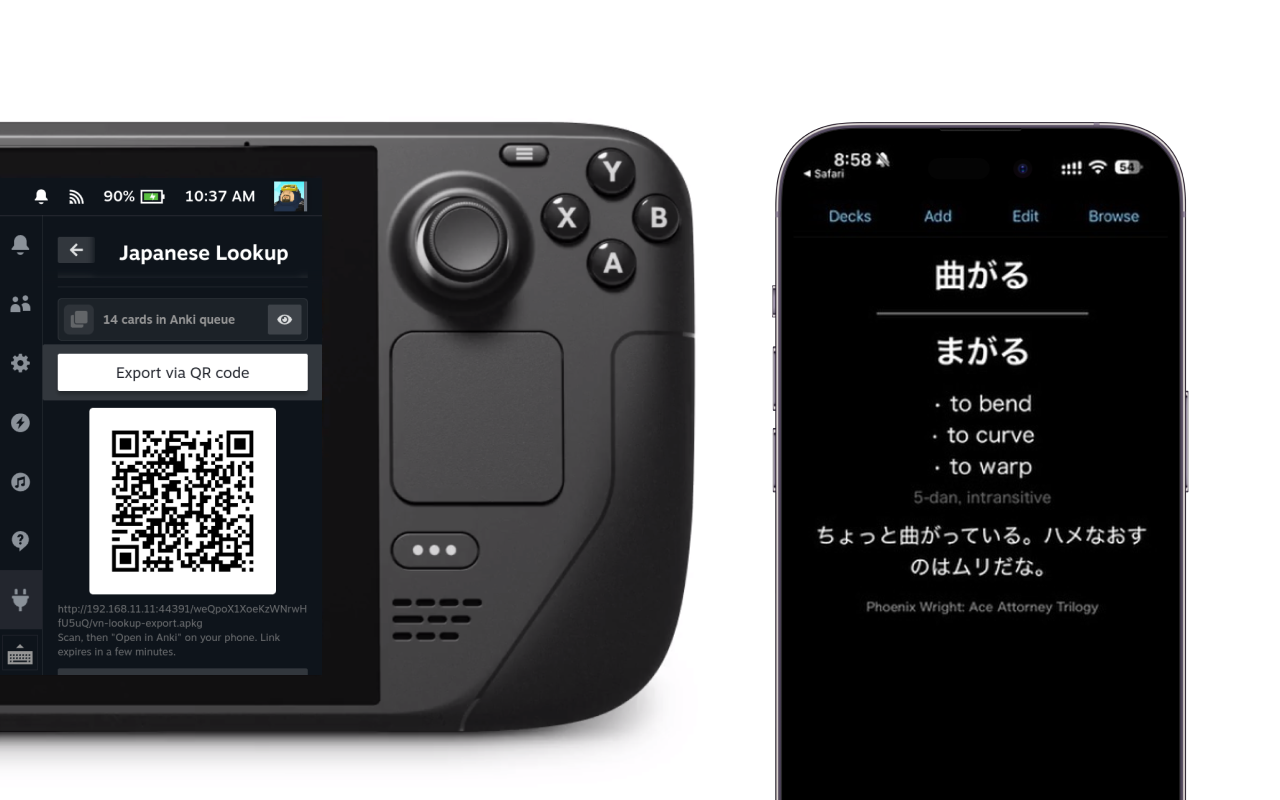
3. Add to Anki
Add words to study later in Anki.
Phoenix Wright: Ace Attorney Trilogy — Capcom, 2014
Features
-

Stay in Gaming Mode
Lookup happens in the sidebar menu. Scan, review, close when done.
-

Works offline
OCR engine and dictionary are downloaded once and stay on the Deck. Nothing is sent anywhere.
-

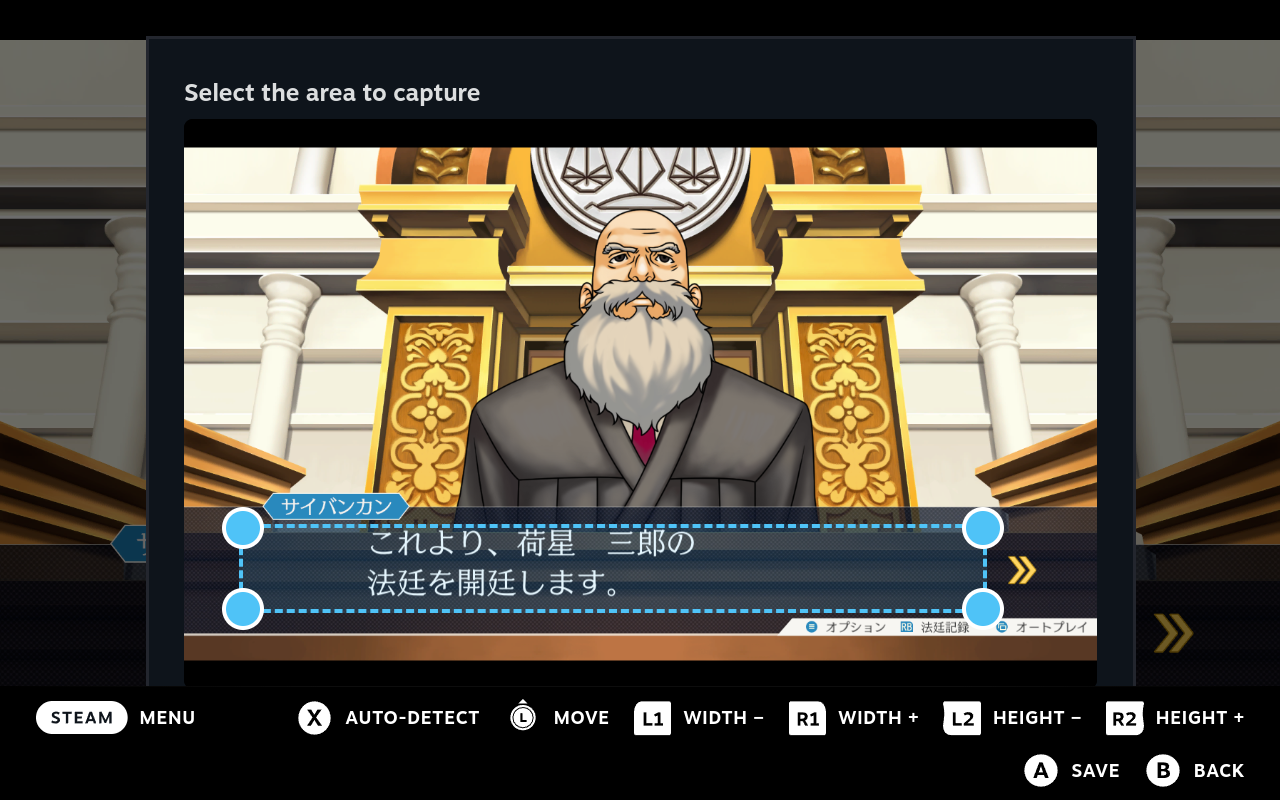
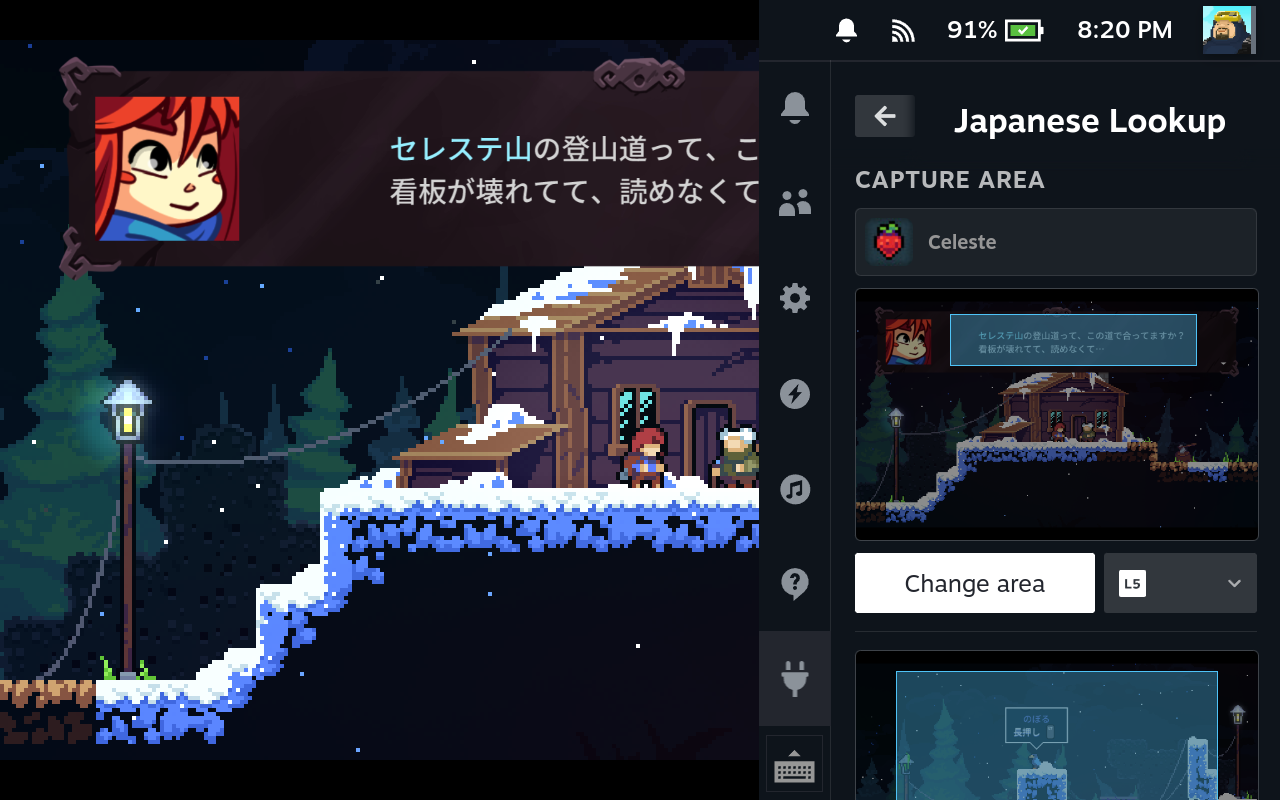
Capture areas
Drag and create multiple capture areas wherever text appears in-game, and assign a hotkey.
-

Send to Anki
Save words locally while looking them up. Generate a QR code and send to AnkiMobile / AnkiDroid.
Install
If you already have Decky installed, setup should take less than 10 minutes.
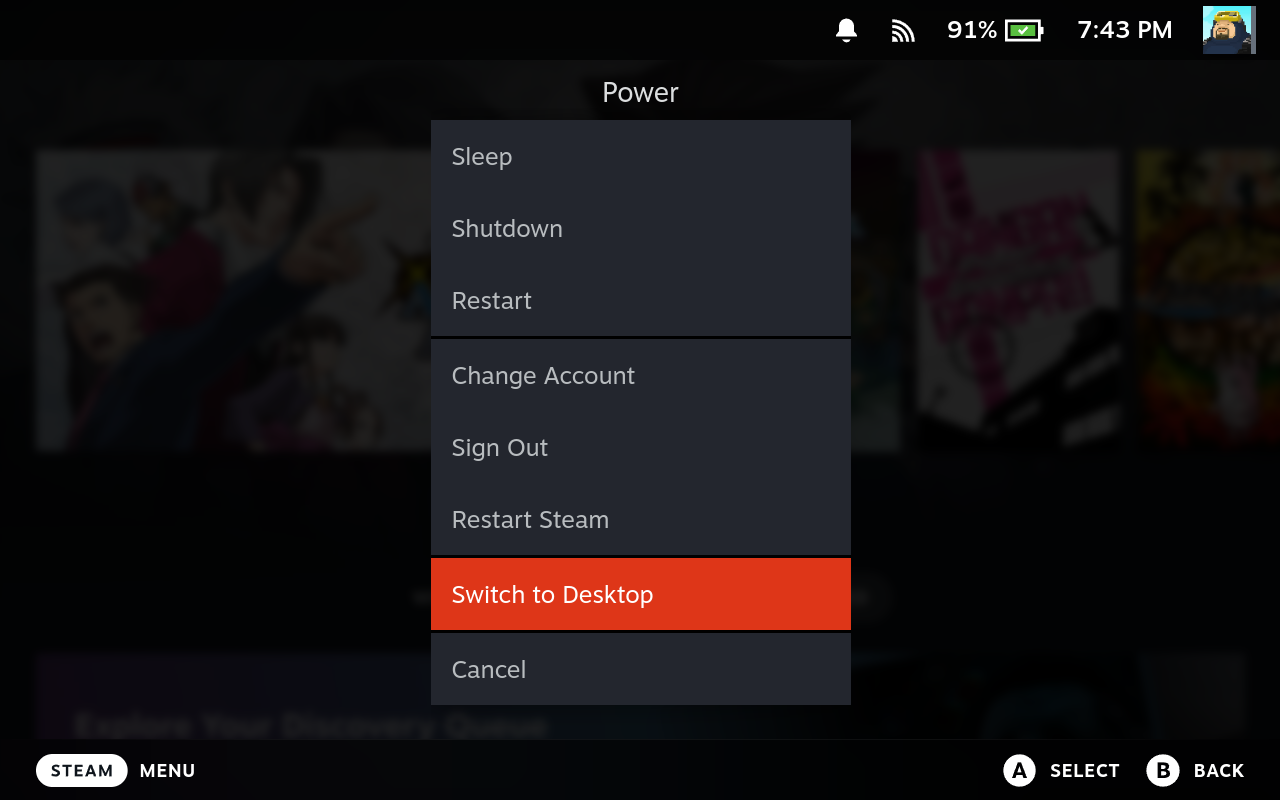
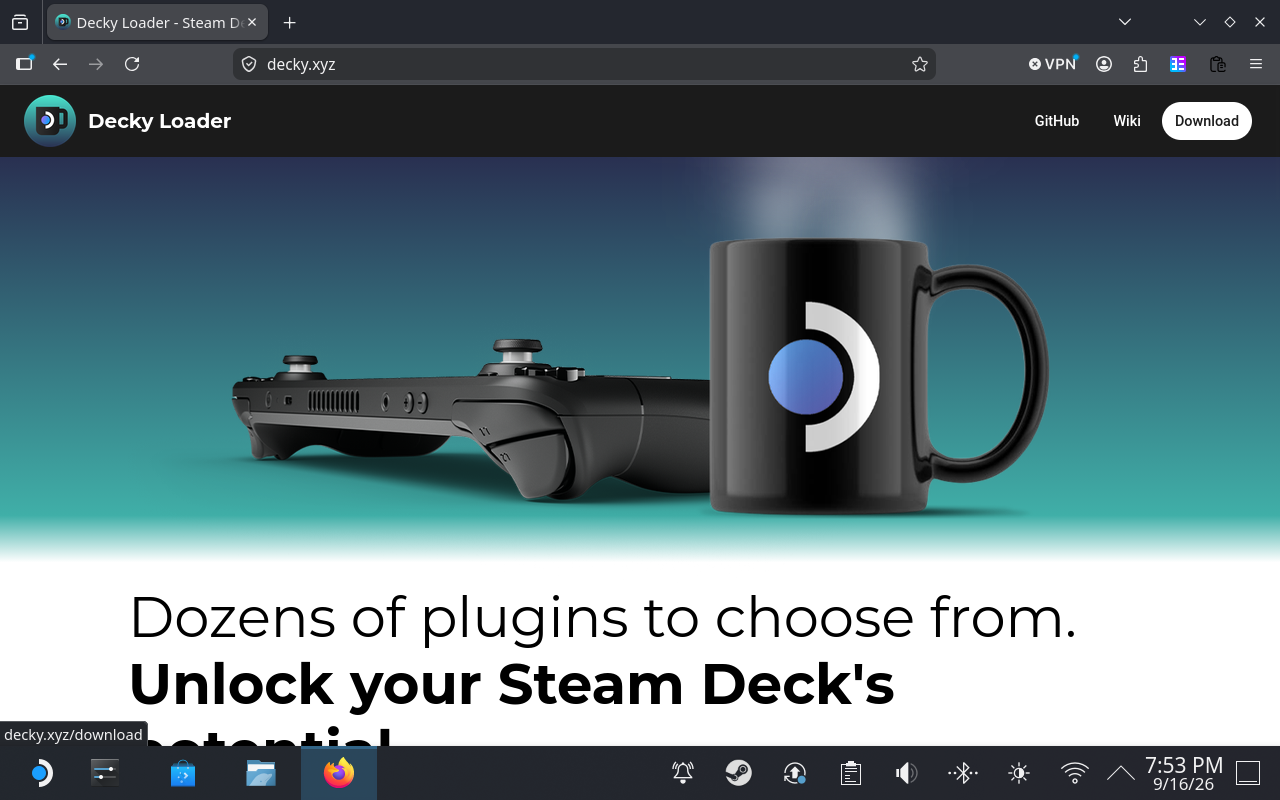
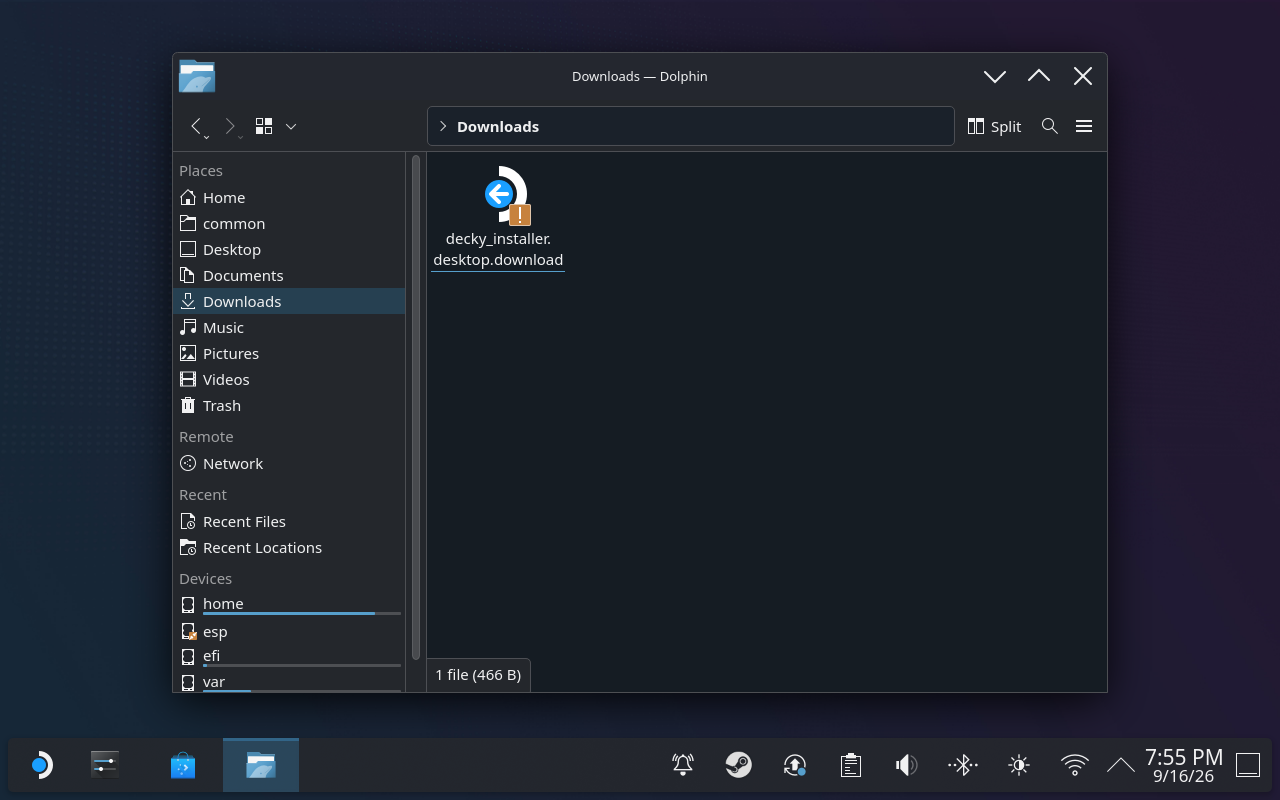
Install Decky Loader
Skip this if you already have Decky.
-
1
Hold the
 button → Power → Switch to Desktop.
- 2 Open a browser, go to decky.xyz, and download the installer.
- 3 Open it from your Downloads folder in the file manager — not the browser's download popup.
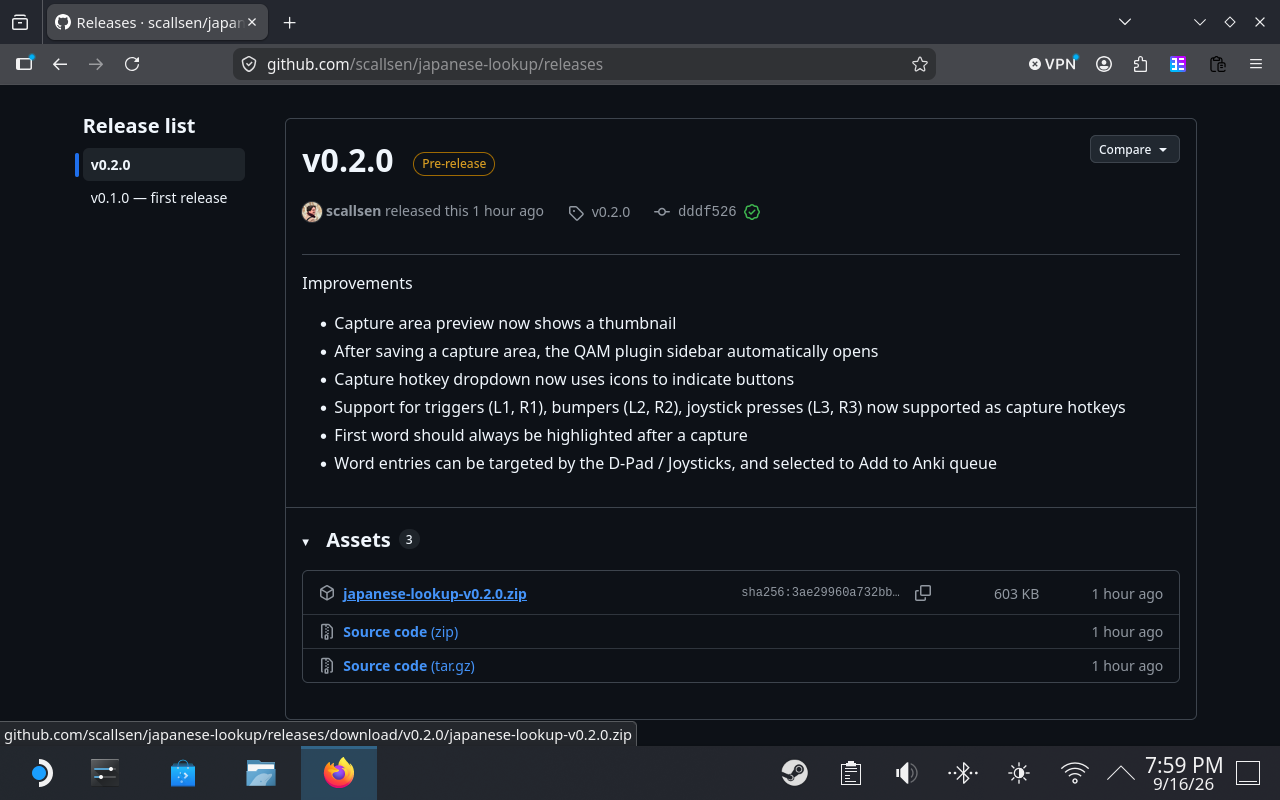
Download the plugin zip
On the Deck, open the latest release on GitHub and download japanese-lookup-vX.Y.Z.zip, or click the Download button on this page to get the latest version.
The file should go to Downloads, leave it there for now.
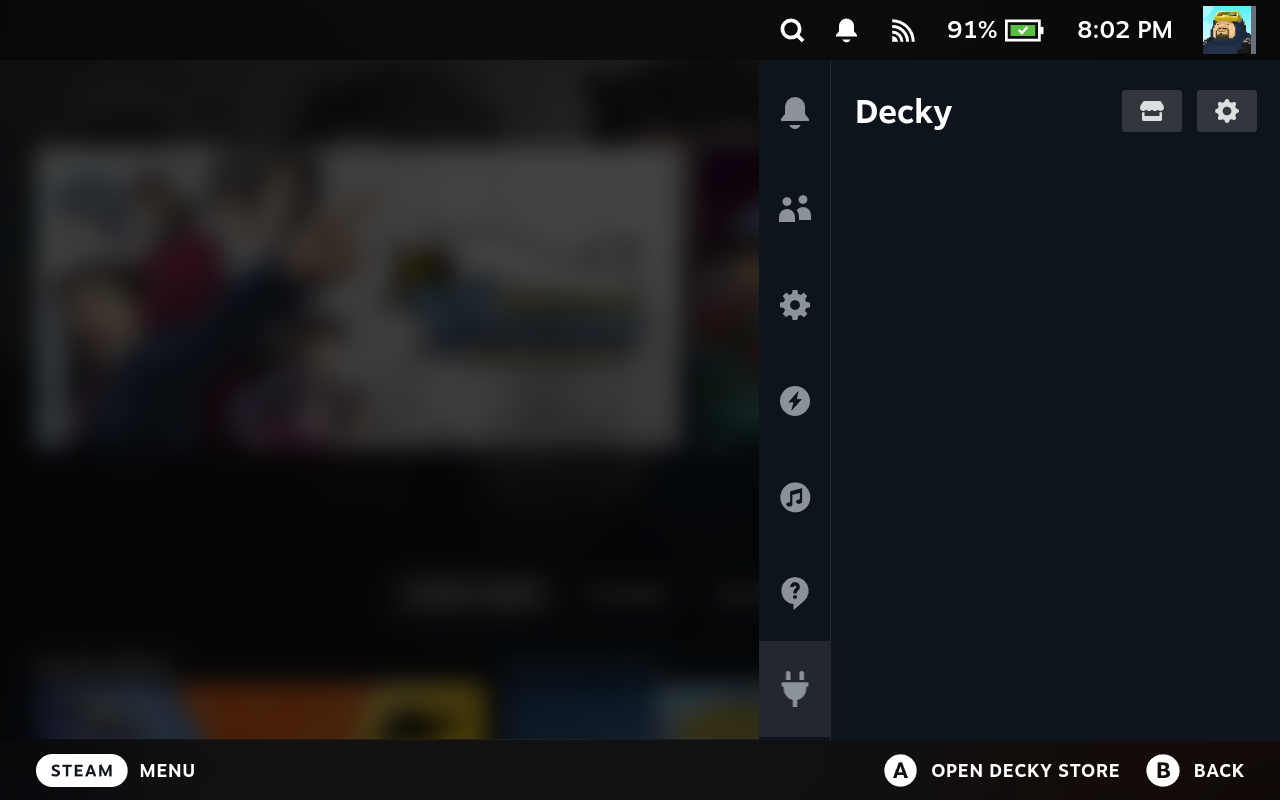
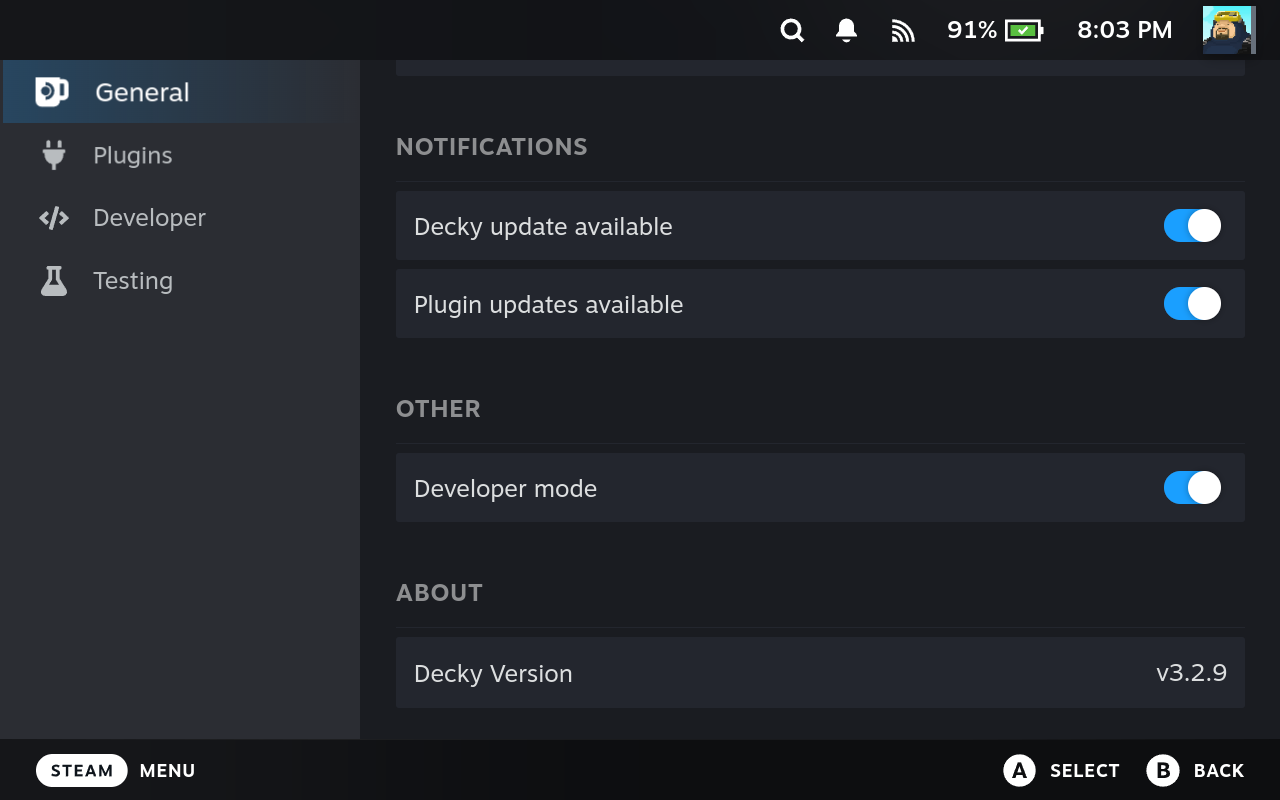
Turn on Developer Mode
The plugin isn't on the Decky store, so it's installed from the zip.
-
1
Press
 → the Decky tab (plug icon).
- 2 Press the gear icon → General.
- 3 Turn on Developer Mode at the bottom.
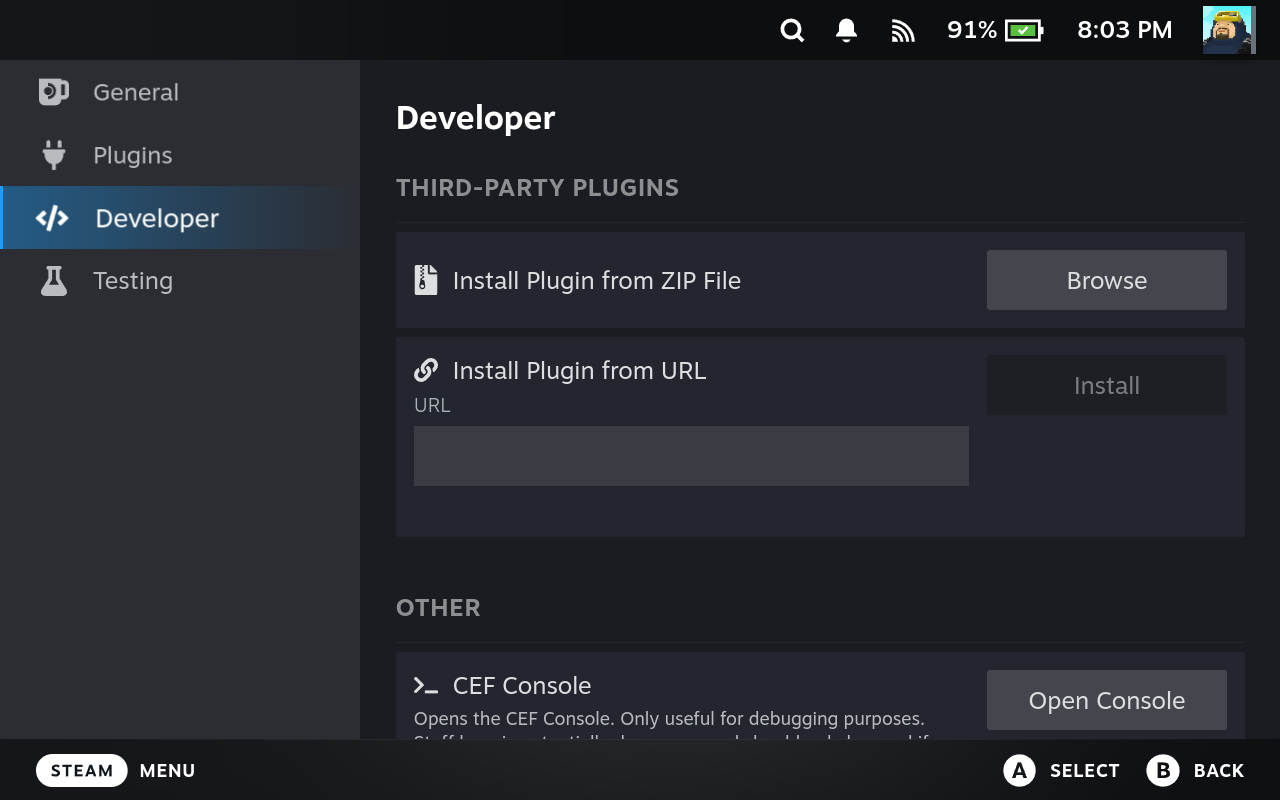
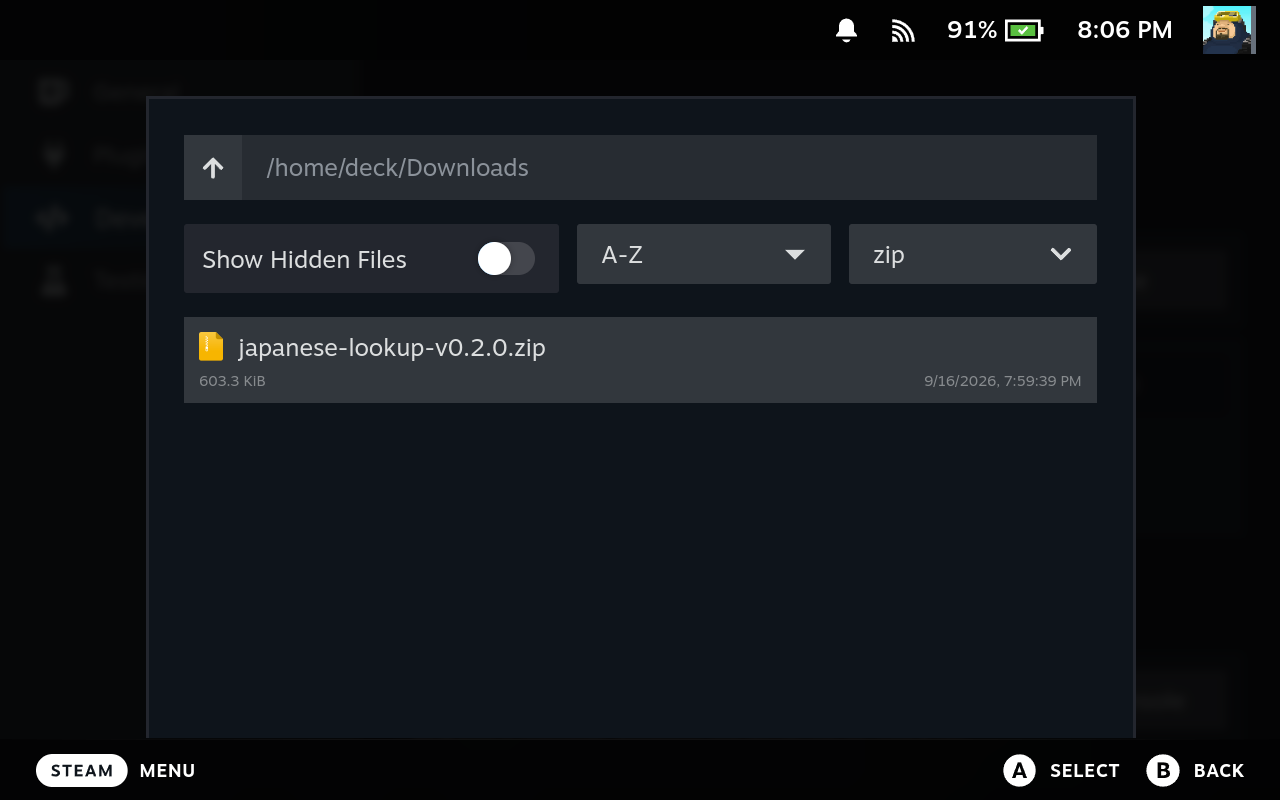
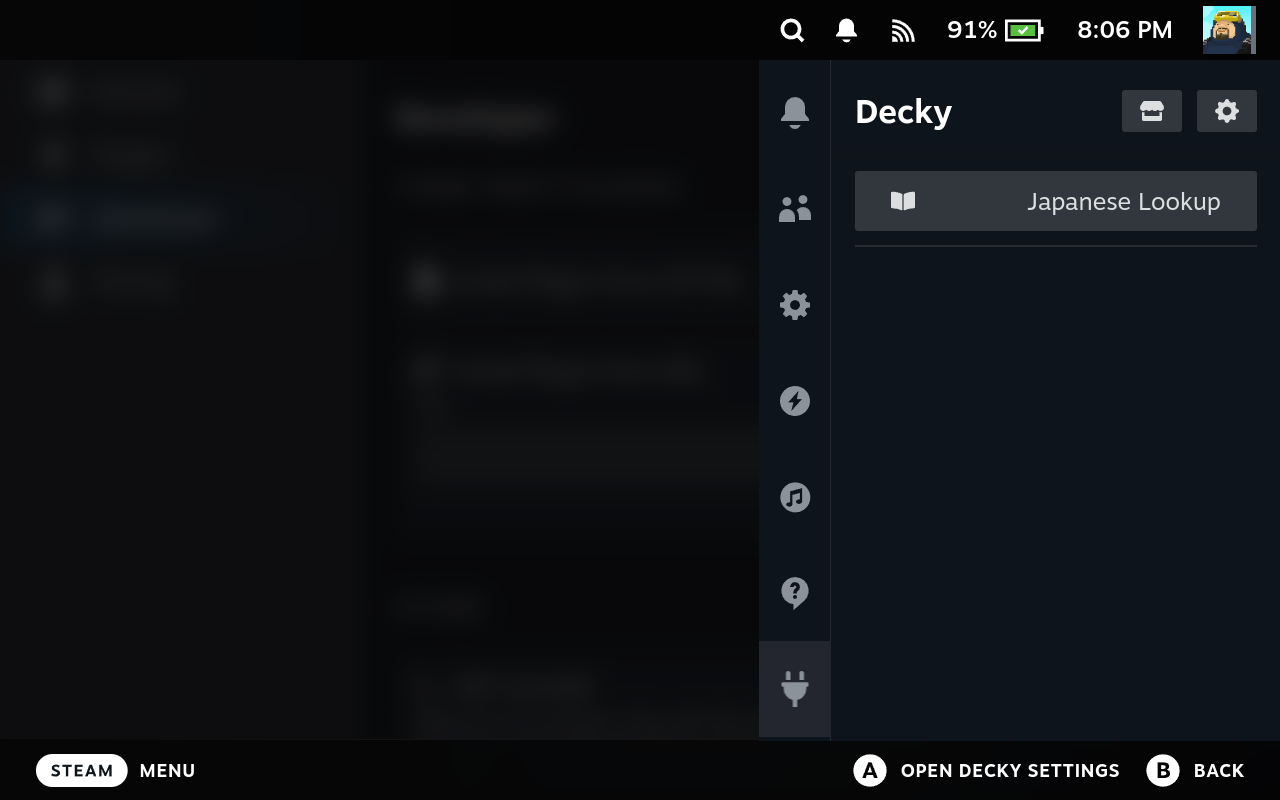
Install from zip
- 1 Open the Developer tab in Decky settings (Developer mode must be enabled).
-
2
Press Install from zip, browse to
Downloads(or wherever you placed the ZIP), and select the file. - 3 Wait for it to finish, then check the Decky tab for Japanese Lookup.
If it doesn't show up right away, restart the Deck.
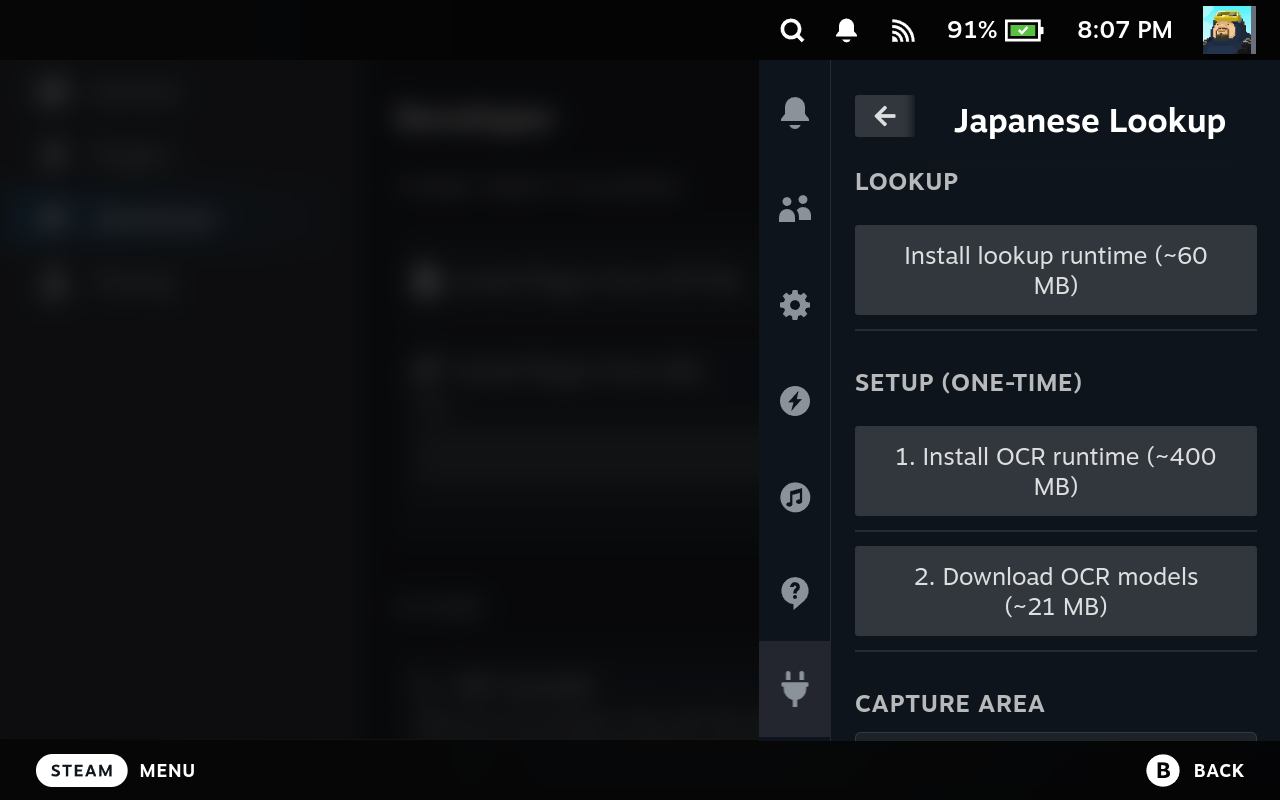
First launch
Open → Decky → Japanese Lookup. With Wi-Fi on, press each download button and wait for it to finish before the next — they appear one at a time as each step completes:
| Install lookup runtime | ~60 MB |
| Download dictionary (Jitendex) | ~70 MB |
| Install OCR runtime | ~400 MB |
| Download OCR models | ~22 MB |
The OCR runtime takes a few minutes. The buttons disappear once everything is in place. Start a game and press 
Updating is the same steps with the newer zip — settings, dictionary, and Anki queue are kept. Prefer to build it yourself, or want to change the code? See Install from source in the README.
Gallery
Questions
Does it need internet?
Only for the one-time downloads on first launch, then it works fully offline.
Which games does it work with?
While the OCR can transcribe any text, it works best for games with dialog boxes. You can create multiple capture areas if text appears in different locations.
Pressing the back buttons does nothing
Check that the capture areas are setup for the current game, and that a hotkey is assigned to them.
It says "No text found" or "Accuracy low".
Check to make sure the capture area is correctly positioned over the text. However, if the font is overly stylized, the OCR may not be able to recognize it.
The QR code won't open on my phone.
Phone and Deck need to be on the same Wi-Fi network. The link expires after about five minutes — press Export via QR code again for a fresh one.
Can I use Yomitan instead of the built-in lookup?
Yes. Every captured line is also shown on a local page, found under Advanced settings → Show debug info
How much space does it take, and how do I remove it?
About 800 MB once the OCR engine and dictionary are downloaded. Advanced settings → Delete downloaded data frees that space but keeps the plugin. Uninstalling from Decky's plugin list should automatically remove those files as well.
Plugin data is stored in /home/deck/homebrew/data/japanese-lookup/.
How do I update the plugin?
Download the new version and install from ZIP through Decky. The shared dependencies (OCR engine, dictionary, etc) will be accessible to the newer version.
Does the plugin support translations?
No, as a study-focused plugin, only dictionary lookups are supported. For full translation, consider using Decky-Translator, which is also available directly on the Decky Plugin Store.